Request Approvals
Managers and HR administrators can review and process various requests submitted by employees.
Reviewing Requests
Navigate to Requests Approval from the home screen.
The list displays all pending and processed requests. Each card shows:
- Employee name
- Request type (e.g., Annual Leave, Overtime)
- Date range or time duration
- Reason provided by the employee
- Submission date
9:41●●●●○WiFi100% 🔋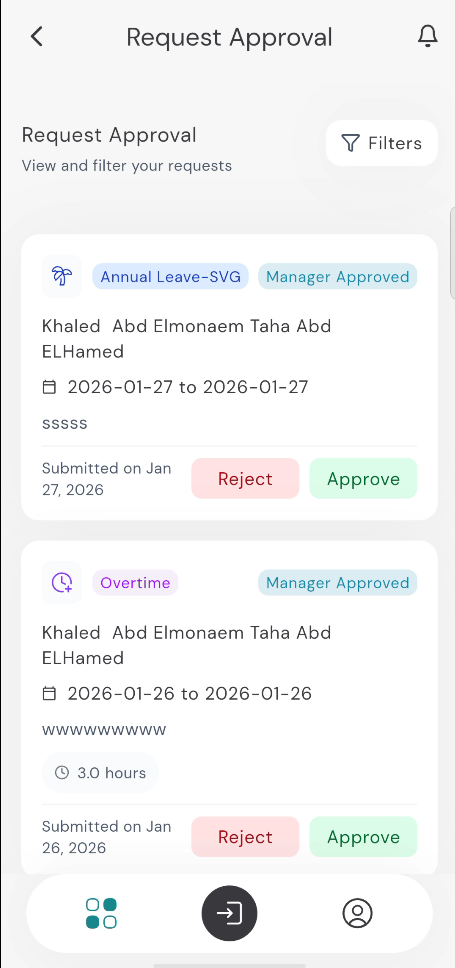
Processing Requests
Approving a Request
- Tap the green Approve button on the request card.
- A confirmation dialog will appear to finalize the approval.
Rejecting a Request
Tap the red Reject button.
A text box will appear asking you to provide a reason for the rejection.
Type the reason and tap Reject again. The employee will be able to see this reason in their request history.
9:41●●●●○WiFi100% 🔋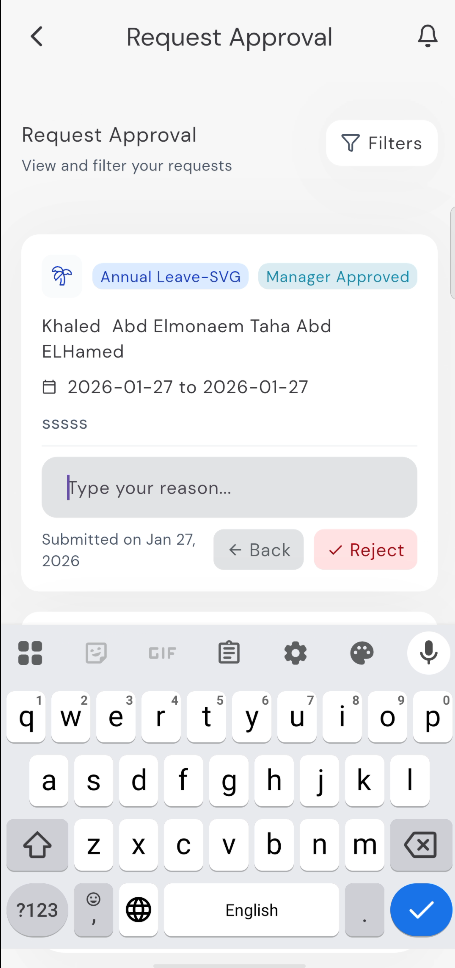
Filtering Requests
To manage a large volume of requests, use the filter options:
Tap the Filters button.
Select a date range.
Select a specific Request Type.
Check Need Action to only see pending requests. These are the actions you can take based on your specific user role.
Tap Apply.
9:41●●●●○WiFi100% 🔋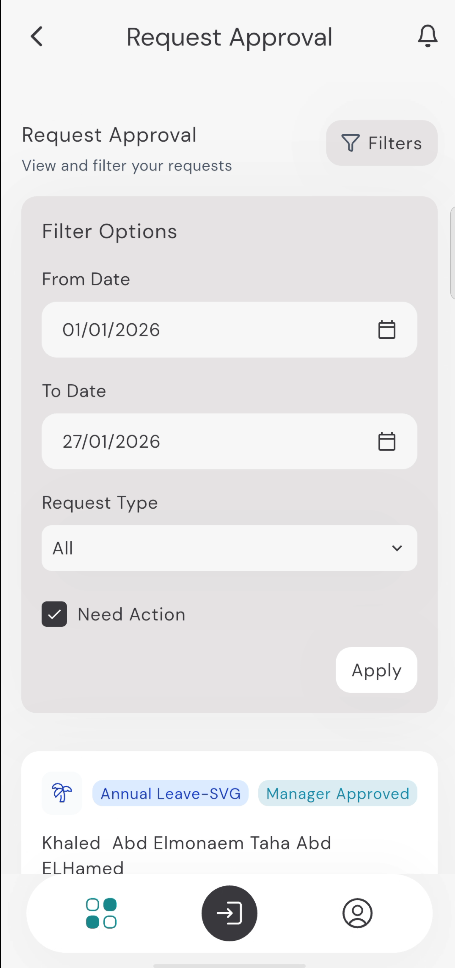
Approval Workflow
The lifecycle of a request follows this path: Requested ➔ Manager Approved ➔ Approved / Rejected / Canceled / Closed
Closed Status: A request is marked as Closed when an employee cancels their request while it is still in the initial Requested state (before it has reached the manager for approval).